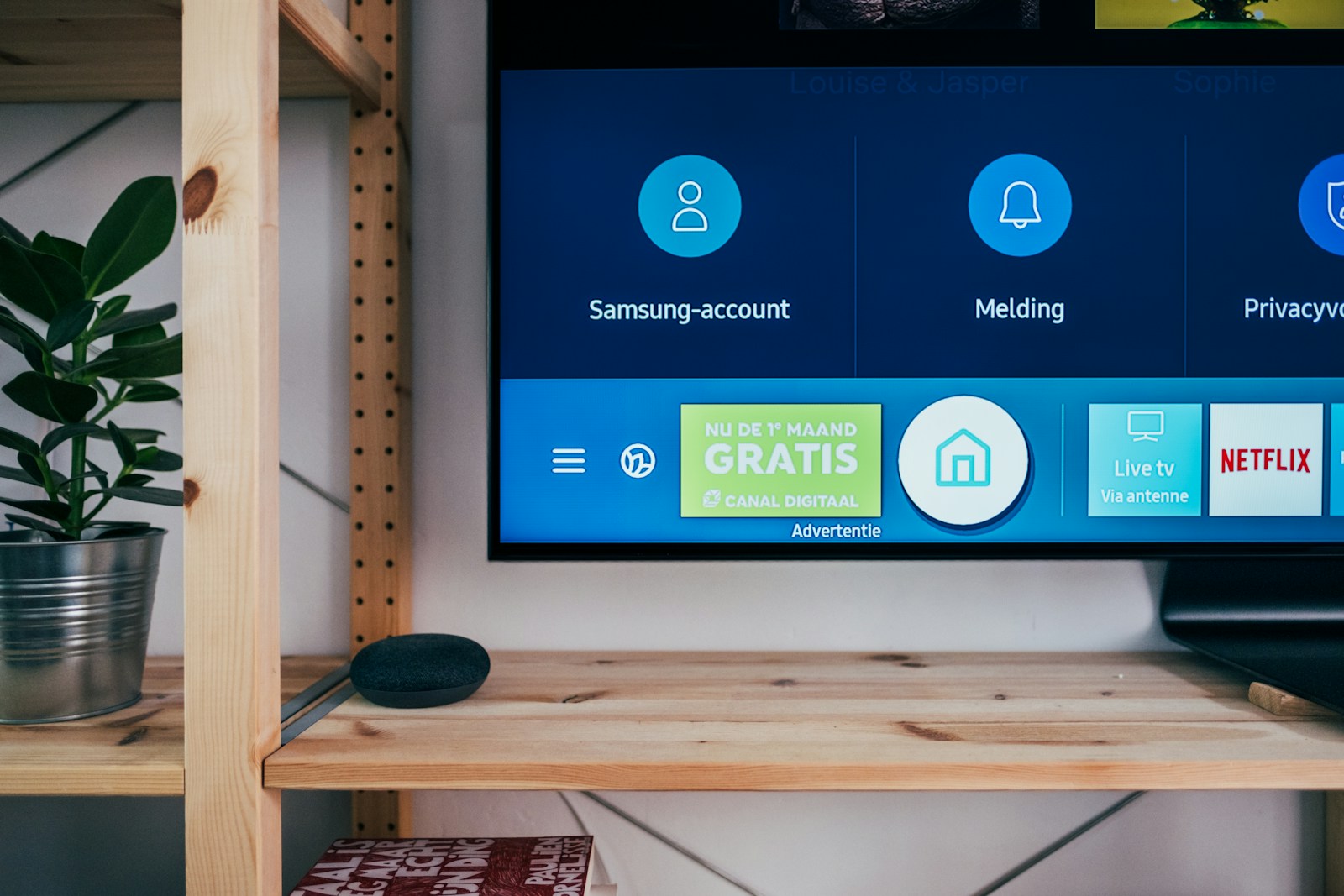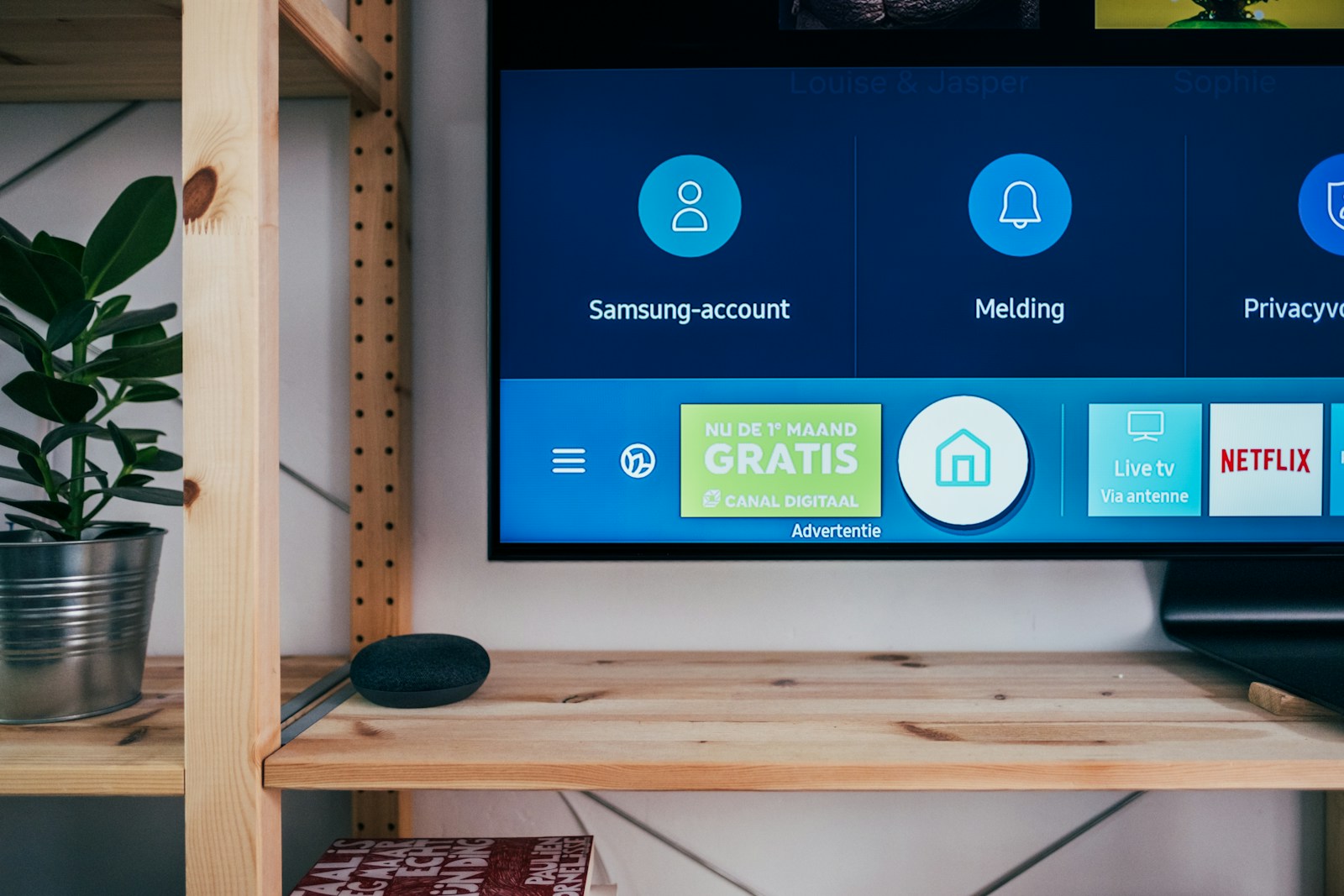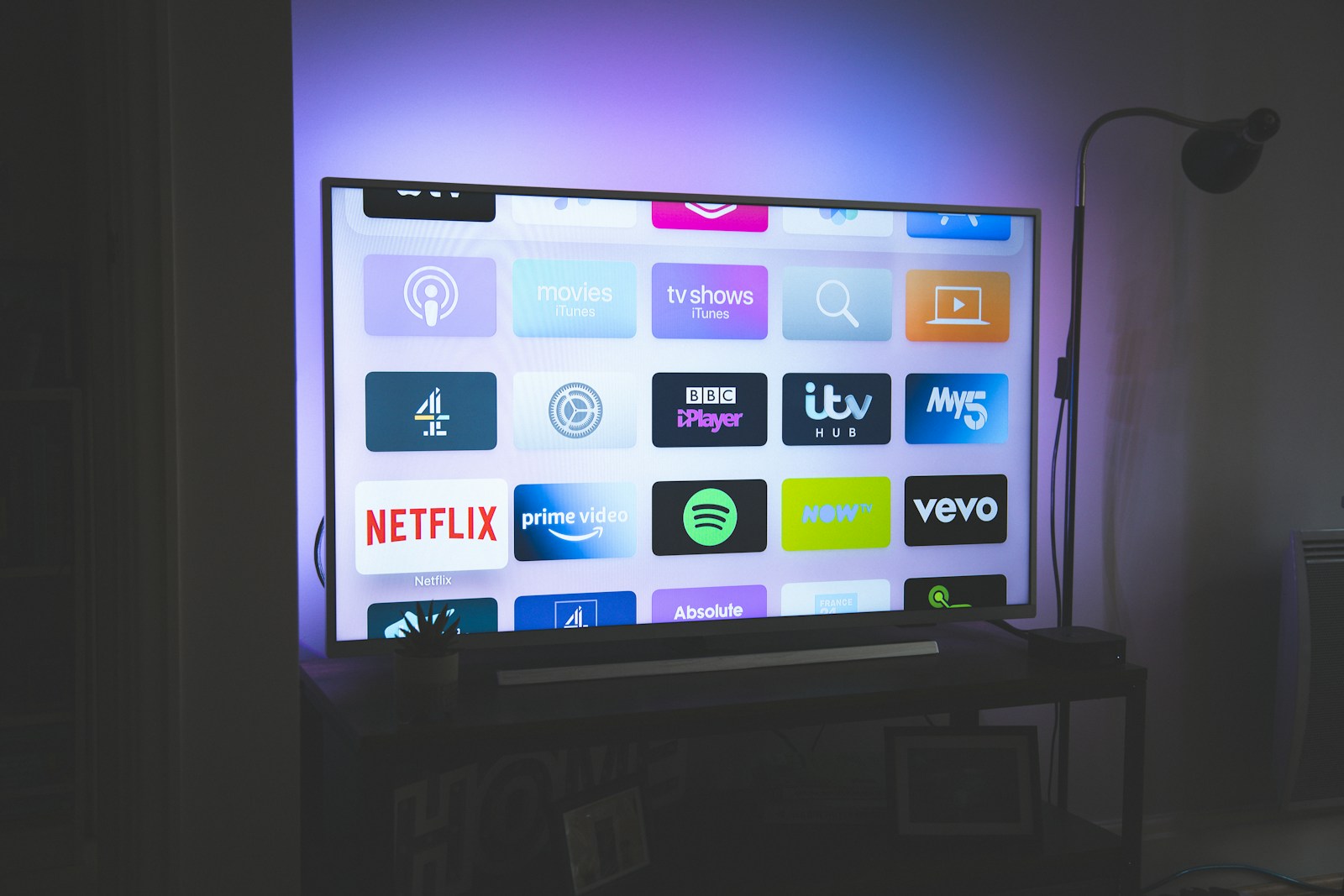
Samsung Smart TVs run Tizen OS, which is more restrictive than Android when it comes to third-party IPTV apps. When IPTV is not working on a Samsung TV, the cause is almost always either an app-level restriction — particularly the annual Smart IPTV reactivation requirement — or a Tizen OS compatibility issue introduced by a TV firmware update. This guide targets Samsung-specific IPTV problems directly.
New to IPTV? IPTV (Internet Protocol Television) streams live TV, on-demand films, and sports directly over your broadband connection — no satellite dish or cable required. Read our complete What is IPTV guide →
🏆 Our Top 3 Recommended IPTV Services
- StreamVault — Premium global IPTV, 20,000+ channels, 4K Ultra HD. From $29.99/mo
- ApexFlow — Best for sports fans, all major leagues & PPV. From $24.99/mo
- BeamTV — Family-friendly & affordable, kids-safe content. From $7.99/mo
All three support 1, 3, 6 and 12-month plans — secure PayPal checkout.
The Smart IPTV App Annual Reactivation Issue #
Smart IPTV (also called SIPTV) is the most widely used IPTV app on Samsung Tizen OS. If IPTV is suddenly not working on your Samsung TV and you use Smart IPTV, the most likely cause is that your annual licence has expired. Smart IPTV charges approximately €5.49 per year per TV for continued use — after 12 months, the app continues to launch but streams stop playing without an active licence.
Fix: Open a browser on any device and go to the Smart IPTV activation page. Enter your TV’s MAC address (shown on the Smart IPTV launch screen) and renew your licence. Reactivation reflects in the app within minutes without needing to reinstall anything.
Fix 1 — Check Samsung Smart TV’s App Availability #
Not all IPTV apps are available on Samsung’s Tizen App Store. Samsung has progressively removed third-party IPTV apps from its store in recent years, meaning apps that worked previously may no longer appear in the store for reinstallation after deletion. If your Samsung TV IPTV app has disappeared from the store, Smart IPTV and the Samsung-compatible version of GSE Smart IPTV remain available in most regions. Check both before assuming no solution exists.
Fix 2 — Update Samsung TV Firmware #
Samsung releases Tizen firmware updates that sometimes break IPTV app compatibility — and then fix it again in the next update. If IPTV stopped working on your Samsung TV immediately after an automatic firmware update, check Samsung’s support forums for reports from other users experiencing the same issue. The next firmware patch typically resolves it within days. Settings → Support → Software Update → Update Now.
Fix 3 — Reload Your M3U Playlist URL #
Tizen IPTV apps store your M3U playlist URL locally. If your provider changed the server address or your credentials expired, the stored URL becomes invalid and IPTV stops working on your Samsung TV silently. Open Smart IPTV’s web configuration interface (accessible via the app’s launch screen URL), delete the current playlist URL, and paste a fresh one provided by your provider. Save and refresh — the app reloads your channel list with the new URL.
Fix 4 — Reset Samsung TV Network Settings #
IPTV not working on Samsung TV can stem from stale network configuration — particularly after router changes or ISP equipment swaps. Go to Settings → General → Network → Reset Network, then reconnect your TV to Wi-Fi or wired ethernet. This forces a clean DHCP lease and refreshes DNS settings, often resolving connection failures that appear despite the TV showing a “Connected” status.
Fix 5 — Use a Streaming Device Instead #
If IPTV continues not working on your Samsung TV through all of the above fixes, the most reliable long-term solution is to use a dedicated streaming device plugged into the TV’s HDMI port rather than relying on Tizen OS apps. An Amazon Firestick 4K or Android TV box runs a full Android-based IPTV ecosystem with significantly better app support and update frequency than Samsung’s closed Tizen platform. Our best IPTV for Smart TV guide covers the full comparison of native vs. external device approaches.
Fix 6 — Try a Wired Connection #
Samsung Smart TVs have an ethernet port on the back panel — use it. Wi-Fi on Samsung TVs, while generally reliable, is prone to interference from other smart home devices operating on the 2.4GHz band. Connecting via ethernet eliminates wireless interference and provides a stable, low-jitter connection for IPTV streaming. If running a cable isn’t feasible, switch your router to the 5GHz Wi-Fi band and connect the TV to that network instead.
For more support on Samsung-specific streaming, our IPTV for Smart TV guide covers setup options across Samsung, LG and Sony TVs. For the full IPTV troubleshooting overview, visit our IPTV not working in the UK guide.
Frequently Asked Questions #
Which IPTV app works best on Samsung Smart TV?
Smart IPTV (SIPTV) and GSE Smart IPTV are the two most reliable options for Samsung Tizen OS TVs. Both support M3U playlists and XMLTV EPG. Smart IPTV has a £4–5 annual licence fee; GSE Smart IPTV is free with a one-off premium unlock.
Can I sideload IPTV apps on a Samsung Smart TV?
Unlike Android-based TVs, Samsung Tizen OS does not support APK sideloading through standard means. A developer mode workaround exists but voids warranty and is not recommended for typical users. A dedicated external streaming device is a simpler and more future-proof approach for Samsung TV owners who need broader app access.